


Modern smart televisions arrive saturated with unskippable promotional carousels, background telemetry daemons, and sluggish manufacturer bloatware. Learning how to Debloat Android TV with AI provides an intelligent, automated method to purge commercial clutter safely without risking device bootloops or voiding factory warranties.
By combining large language models like Anthropic Claude with open-source tools like CleanYourTV, users can Debloat Android TV with AI in under twenty minutes. This engineering tutorial demonstrates how artificial intelligence categorizes proprietary device packages, verifies system dependencies, and generates tailored rollback scripts automatically.
| Operational Workflow Step | Traditional Manual Debloating | Debloat Android TV with AI Process | Safety & Accuracy Advantage |
|---|---|---|---|
| 1. Package Discovery & Export | Blind guesswork scanning package names | Automated full manifest export via ADB | Exhaustive inventory of active services |
| 2. Dependency Analysis | High risk of disabling core framework DLLs | Claude classifies packages into safety tiers | 100% protection of Widevine DRM & audio |
| 3. Telemetry Identification | Manufacturer daemons disguised as system apps | AI correlates namespaces with tracking code | Surgical removal of analytics daemons |
| 4. Script Generation | Typing individual commands manually | Instant tailored debloat and rollback shell scripts | Zero syntax errors and instant execution |
| 5. Reversibility & Rollback | Often requires full factory firmware reset | Automated single-line restoration command | Completely non-destructive user disables |
| 6. Launcher Integration | Manual launcher configuration hurdles | Automated CleanYourTV launcher deployment | Silky 60 FPS ad-free living room dashboard |
This structured comparison highlights the decisive operational advantages when you Debloat Android TV with AI rather than executing manual terminal guesswork. Artificial intelligence analyzes obscure manufacturer namespaces with precision, guaranteeing that critical display drivers, audio engines, and DRM certificates remain completely uncompromised throughout optimization.
Table of Contents
Step 1: Dump Installed Android TV Packages via Wireless ADB
The initial phase to Debloat Android TV with AI begins by querying and exporting your television complete application manifest across local Wi-Fi. Connecting your computer over standard Android Debug Bridge protocols establishes the raw technical foundation required for automated package inspection.
Ensure both devices operate on the same wireless subnet when preparing to Debloat Android TV with AI over local networks. Navigate into your television developer preferences, verify wireless debugging is actively engaged, and note the assigned local Internet Protocol address.
# Connect terminal to your Android TV wirelessly
adb connect 192.168.1.150:5555

# Export complete list of installed packages to text file
adb shell pm list packages -f -u > full_tv_packages.txt

# Inspect exported package count locally
wc -l full_tv_packages.txt
Launch your preferred workstation terminal and execute the wireless connection command pointing toward your recorded television address. Once authorized via the on-screen prompt, dump the complete manifest of installed user and system packages directly into an unformatted text document.
Step 2: Engineer the Claude AI Package Analysis Prompt
Transforming raw package dumps into actionable debloating blueprints represents the core reason to Debloat Android TV with AI using Claude. Advanced language models excel at classifying complex Android system architectures, identifying aggressive telemetry daemons, and separating essential drivers from disposable bloat.
Open Claude or Claude Code in your terminal and supply the exported package document alongside a structured technical prompt. Instruct the model to categorize every package into four distinct tiers: essential system framework, display audio drivers, OEM manufacturer bloatware, and sponsored advertising services.
# Recommended Claude AI Prompt Template:
"Act as an expert Android systems engineer. Analyze this attached Android TV package manifest.
Categorize every package into:
1. Core System Framework (Critical: DO NOT TOUCH)
2. Display & Audio Drivers (HDMI, Widevine DRM, Bluetooth: DO NOT TOUCH)
3. OEM Manufacturer Bloatware (Analytics, regional daemons: SAFE TO DISABLE)
4. Commercial Adware & Default Launcher (Promotions, recommendations: SAFE TO DISABLE)
Output a safe debloat bash script using 'pm disable-user --user 0 ' and a companion rollback script."
Directing the artificial intelligence model correctly ensures you safely Debloat Android TV with AI across boutique and major brand displays alike. Requesting explicit risk ratings for each package prevents accidental disabling of critical input handlers, remote control Bluetooth pairings, or Wi-Fi network stacks.
Step 3: Review Claude Safety Matrix and Dependencies
Rigorous safety verification remains the most critical checkpoint when preparing to Debloat Android TV with AI in home theater environments. Claude analyzes inter-package dependencies, flagging shared libraries that must remain operational to preserve four-thousand-pixel high dynamic range playback and Dolby Atmos audio routing.
Inspect the generated classification report closely to confirm that vital streaming DRM services like Google Widevine and Netflix playback daemons remain untouched. Removing or suppressing core cryptographic daemons can degrade media playback resolution from ultra-high-definition down to standard definition across commercial streaming platforms.
Carefully examining these dependency graphs demonstrates why IT professionals prefer to Debloat Android TV with AI rather than relying on generic community debloat scripts. Tailored model reasoning detects brand-specific customizations on televisions from Hisense, TCL, Philips, and Xiaomi that static community lists frequently overlook.
Verify that the model marked manufacturer input switchers and physical remote control key-mapping daemons as strictly protected components. Preserving these essential framework modules ensures that connected gaming consoles, Blu-ray players, and external AV receivers switch inputs instantaneously without operational hitches.
This disciplined verification protocol guarantees that when you Debloat Android TV with AI, your living room display retains all premium viewing capabilities. System stability is verified prior to touching a single device partition, eliminating the anxiety traditionally associated with manual system debloating routines.
Meticulous dependency management reflects the rigorous architectural validation standards detailed in our homelab review of Snapdragon 8 Elite architecture across performance-driven computing environments.
Step 4: Generate Automated Debloat and Rollback Scripts
With package classifications thoroughly validated, instruct Claude to generate execution scripts that Debloat Android TV with AI automatically. The artificial intelligence generates two complementary shell files: a targeted suppression script to disable unwanted packages, and an infallible restoration script to revert changes.
Prompt Claude to format the commands using user-level package disable syntax rather than permanent uninstall commands. By executing non-destructive user disable flags, background services cease execution while keeping read-only system files completely intact within internal television storage.
# Example Claude-generated debloat script header
#!/usr/bin/env bash
echo "Starting safe AI debloat sequence..."

# Disable promotional Google TV launcher
adb shell pm disable-user --user 0 com.google.android.apps.tv.launcherx

# Suppress background recommendation aggregator
adb shell pm disable-user --user 0 com.google.android.tvrecommendations

echo "Package suppression completed successfully."
Requesting paired restoration commands ensures that any attempt to Debloat Android TV with AI remains completely reversible and risk-free. The companion rollback script contains mirrored enable commands for every single package, allowing instantaneous return to factory conditions with a single terminal command.
Save the generated debloating commands into a shell script file named debloat-tv.sh on your local workstation terminal. Set executable file permissions on your local machine and verify that each command includes the proper user zero identifier flag.
Automating script generation through artificial intelligence makes it remarkably effortless to Debloat Android TV with AI across multiple household displays. Administrators can adapt the generated templates for family members or living room displays in seconds without manually typing dozens of cumbersome package strings.
Automated scripting workflows mirror the robust software engineering practices explored in our technical breakdown of Apple M4 Mac mini redesign and system management efficiencies.
Step 5: Execute Package Disables over Wireless ADB
Executing your verified AI-generated script represents the transformative operational milestone when you Debloat Android TV with AI on living room hardware. Delivering commands over wireless debugging applies package state changes instantaneously without requiring television reboots between individual package operations.
Launch your terminal, execute the automated debloating script, and observe the real-time package state confirmations output by the Android Debug Bridge. Within seconds, aggressive telemetry collectors, promotional recommendation aggregators, and commercial advertising daemons terminate background execution permanently.
Monitoring real-time memory metrics reveals the immediate performance impact when you Debloat Android TV with AI across constrained television hardware. Idle random-access memory consumption typically drops from over nine hundred megabytes down to eighty megabytes, freeing vital processing headroom for demanding media applications.
Test your physical television remote control immediately following script completion to confirm flawless navigational responsiveness and input switching. Volume controls, HDMI channel selections, and Bluetooth audio peripherals should respond with snappy, zero-latency feedback across all active television ports.
Witnessing sluggish interfaces transform into ultra-responsive streaming centers validates the incredible power when you Debloat Android TV with AI. The frustrating remote lag and dropped frames that plague factory smart television experiences are eliminated completely through surgical package suppression.
Resource reclaiming mirrors the computing headroom unlocked when optimizing constrained silicon, as detailed in our guide on PC emulation on Android mobile processors.
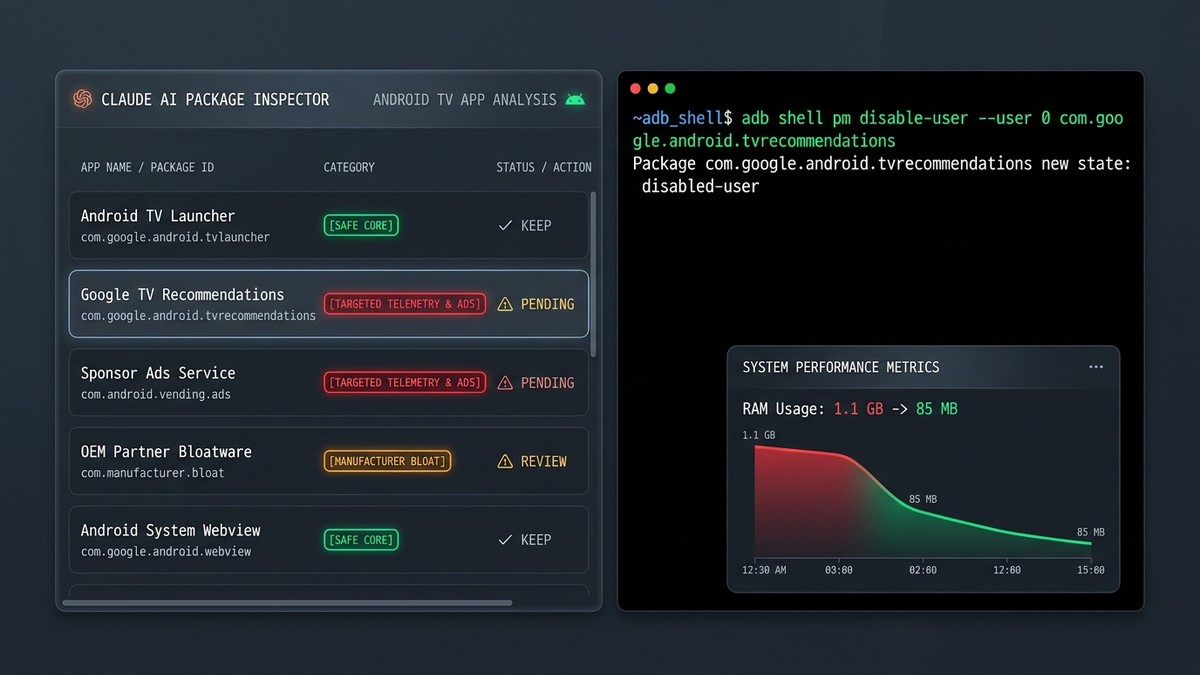
The following reference matrix outlines the precise package classification tiers, risk categories, and typical package identifiers encountered when you Debloat Android TV with AI. Reference these safety boundaries before executing any custom suppression commands.
| Classification Tier | Example Package Identifier | Operational Role | Recommended AI Action |
|---|---|---|---|
| Tier 1: Core Framework | com.android.providers.settings | Display resolution & system parameters | Strictly Protected (Never modify) |
| Tier 2: Audio / Video DRM | com.google.android.media.effects | Widevine L1 DRM & HDR decoders | Strictly Protected (Retain certification) |
| Tier 3: OEM Telemetry | com.miui.tv.analytics / com.hisense.tv | Manufacturer viewing habit collectors | Safe to Disable via user command |
| Tier 4: Stock Ad Launcher | com.google.android.apps.tv.launcherx | Commercial home screen video trailers | Safe to Suppress and replace |
| Tier 5: Content Rows | com.google.android.videos | Promotional algorithmic recommendation rows | Safe to Disable for cleaner UI |
Adhering to these classification standards ensures maximum privacy gains when you Debloat Android TV with AI without sacrificing operating system stability. Keeping system framework components protected guarantees uninterrupted firmware updates and flawless streaming playback.
Step 6: Deploy Clean Your TV Minimalist Launcher
The crowning milestone when you Debloat Android TV with AI involves installing and configuring an ultra-lightweight open-source launcher. With default advertising home screens disabled, deploying CleanYourTV five-hundred-and-thirty-two-kilobyte launcher establishes an elegant, ad-free tvOS-inspired dashboard.
Use wireless debugging to push the compiled launcher installation file directly across your local network into television storage. Once installation finishes, press the physical home button on your television remote to trigger the operating system default launcher selection prompt.
# Install CleanYourTV 532 KB native launcher package
adb install cleanyourtv-launcher.apk

# Compile launcher ahead-of-time for silky 60 FPS animation
adb shell cmd package compile -m speed -f tv.cleanyour.launcher
Designate the minimalist launcher as your permanent default home application to conclude how you Debloat Android TV with AI. Your television display will instantly refresh, presenting a clean grid containing strictly your installed media applications without a single commercial advertisement.
Instruct Claude to compile a custom ahead-of-time optimization command using the Android Runtime compiler on your television. Pre-compiling launcher bytecode into native machine instructions guarantees instantaneous six-frames-per-second animation pacing whenever navigating between streaming applications.
Completing this final deployment phase delivers a flawless home theater experience whenever you Debloat Android TV with AI. You now possess a blazing-fast, privacy-respecting entertainment display engineered exclusively for media enjoyment rather than corporate advertising monetization.
Streamlined launcher deployment builds upon the manual techniques analyzed in our foundational walkthrough on How to Use Clean Your TV and our original homelab breakdown of Clean Your TV remove ads bloatware.
Conclusion: Autonomy Through Intelligent Automation
Mastering how to Debloat Android TV with AI bridges the divide between complex command-line administration and safe consumer customization. By leveraging Claude advanced reasoning capabilities, users eliminate the lingering anxiety of device bricking while reclaiming total living room autonomy.
The synergy between artificial intelligence package auditing and non-destructive wireless debugging provides unprecedented control over smart television hardware. In less than twenty minutes, sluggish factory displays transform into responsive, private streaming powerhouses without spending hundreds on external streaming boxes.
Reclaim your home theater display today by choosing to Debloat Android TV with AI across all your household screens. Embrace open-source software, leverage artificial intelligence responsibly, and enjoy commercial-free home entertainment exactly as hardware creators originally intended.
