


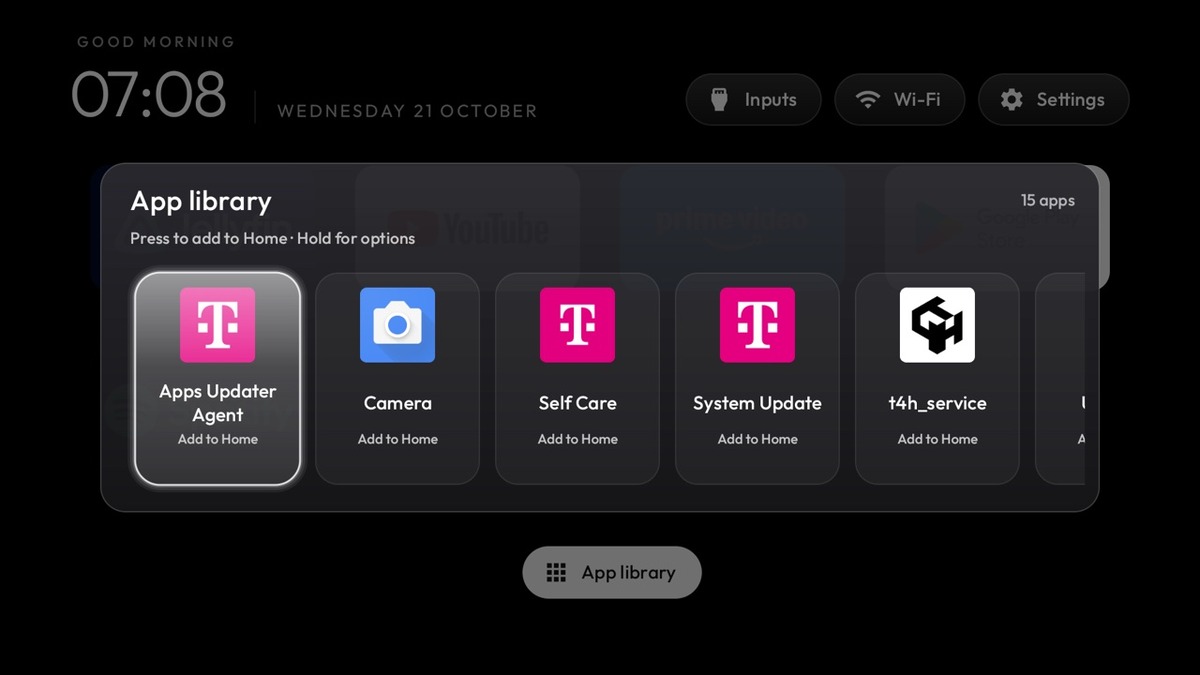
Transforming a sluggish smart television into a high-performance streaming hub is remarkably simple once you master How to Use Clean Your TV. This comprehensive technical walkthrough details how to eliminate intrusive commercial advertisements and telemetry over local Wi-Fi without rooting your display.
Learning How to Use Clean Your TV provides immediate relief from auto-playing video banners and sponsored recommendations. By connecting over standard wireless Android Debug Bridge protocols, users can replace bloated factory interfaces with a lightweight, five-hundred-and-thirty-two-kilobyte launcher in under fifteen minutes.
| Step / Technical Milestone | Primary Action & Terminal Tool | Estimated Time | System Safety Verification |
|---|---|---|---|
| Step 1: Unlock Developer Mode | Navigate to System About and tap Build Number 7 times | 1 Minute | Non-destructive setting toggle |
| Step 2: Enable Wireless Debugging | Turn on Network Debugging in Developer Options menu | 1 Minute | Local subnet communication only |
| Step 3: Connect Remote Workstation | Execute adb connect with television IP address | 2 Minutes | Permanent RSA key authentication |
| Step 4: Generate Safety Backup | Dump installed package list to restoration script | 2 Minutes | 100% reversible rollback file |
| Step 5: Suppress System Bloatware | Apply targeted package disable commands over Wi-Fi | 3 Minutes | Read-only partitions preserved |
| Step 6: Deploy Minimalist Launcher | Install 532 KB native tvOS-style home dashboard | 2 Minutes | Instantaneous 60 FPS remote navigation |
This structured roadmap outlines the foundational deployment phases required when learning How to Use Clean Your TV across any compatible display. Following these sequential milestones ensures full system configuration backup, zero operating system corruption, and instantaneous performance recovery.
Table of Contents
Step 1: Unlock Developer Options on Android TV
The initial step in mastering How to Use Clean Your TV begins by unlocking hidden developer options within your television operating system. Every certified Android TV and Google TV platform includes these native administrative tools to facilitate remote technical communication.
Using your factory remote control, navigate into the main settings menu and locate the device preferences or system about screen. Scroll through the hardware properties until you highlight the software build number entry on your television display.
Press the center select button seven times consecutively until an on-screen notification confirms that developer status has been successfully unlocked. Return to the primary preferences menu, where you will now observe the newly activated developer options submenu listed.
Step 2: Enable Wireless Network Debugging
Open the developer submenu when exploring How to Use Clean Your TV and toggle network debugging to its active operational state. Some television models may additionally require enabling USB debugging alongside wireless options to accept incoming connection requests.
Completing this preliminary configuration establishes the foundation for How to Use Clean Your TV across your local wireless environment. Keeping your display powered on during this initial handshake ensures uninterrupted communication with your connected administrative laptop or desktop computer.
Wireless administrative access mirrors the network control paradigms analyzed in our homelab overview of Clean Your TV remove ads bloatware across modern connected entertainment displays.
Step 3: Pair and Connect Your Computer via Wireless ADB
Establishing a reliable wireless connection represents the critical third step when discovering How to Use Clean Your TV from your local workstation. Both your television and computer must operate on the exact same wireless local area network subnet.
Navigate into your television network settings and record the assigned local Internet Protocol address, typically formatted as a local subnetwork numerical string. Launch a standard terminal window or command prompt on your computer to initiate the remote connection handshake.
# Connect to your television over local wireless network
adb connect 192.168.1.150:5555

# Verify television is authenticated and active
adb devices -l
Execute the standard connection command to start How to Use Clean Your TV pointing toward your recorded television address across the default networking port five-five-five-five. An administrative authorization dialog box will materialize across your screen requesting remote debugging confirmation.
Check the permanent authorization checkbox using your remote control and confirm the prompt to establish a trusted wireless session. Running a rapid device check within your computer terminal will display your television status as an active connected endpoint.
A stable network session guarantees that subsequent commands executing How to Use Clean Your TV transmit without packet loss or interface timeouts. Maintaining clear Wi-Fi signal strength between both devices ensures smooth package inspection without unexpected connection termination during execution.
Low-latency networking is just as crucial for remote device maintenance as it is for high-performance computing, as documented in our Snapdragon 8 Elite architecture technical benchmarks.
Step 4: Export Full System Package Backups
Creating a comprehensive system backup is the most vital safety procedure when implementing How to Use Clean Your TV on living room hardware. Prior to modifying any packages, exporting your existing system configuration provides an infallible rollback mechanism against unintended disruptions.
Generate a dedicated local storage folder on your computer terminal to house your device technical export files safely. Execute a comprehensive package query through the debugging bridge, saving every installed application identifier directly into a structured text document.
# Export registry list of all installed system packages
adb shell pm list packages -u > android_tv_package_backup.txt

# Verify package backup file size locally
ls -lh android_tv_package_backup.txt
Next, generate an automated restoration script by extracting the package list into sequential re-enabling terminal commands. This ensures that every background component disabled during the optimization process can be restored simultaneously with a single terminal execution.
Verify that your television USB storage ports and network adapters remain operational while debugging protocols remain actively engaged. Storing your restoration script within a secure folder guarantees complete peace of mind before executing any package suppression commands.
This disciplined backup protocol exemplifies why learning How to Use Clean Your TV remains entirely risk-free for everyday consumers and homelab administrators. By prioritizing complete reversibility, users eliminate the lingering anxiety traditionally associated with manual Android system debloating routines.
Data integrity protections mirror the rigorous security standards discussed in our analysis of Apple M4 Mac mini redesign memory architectures.
Step 5: Disable Telemetry, Adware, and Stock Launcher
With verified backups safely secured, executing targeted package suppression represents the operational heart of How to Use Clean Your TV across your display. Using non-destructive user disable commands ensures that targeted packages cease background operation without deleting system partitions.
Execute targeted suppression commands to continue How to Use Clean Your TV against known Google TV advertising rows, recommendation aggregators, and background daemons. Disabling promotional launchers relieves hundreds of megabytes of working system memory from continuous background video rendering tasks.
# Disable default promotional launcher without deleting files
adb shell pm disable-user --user 0 com.google.android.apps.tv.launcherx

# Suppress background recommendation and telemetry daemons
adb shell pm disable-user --user 0 com.google.android.tvrecommendations
If operating branded hardware from Xiaomi, Hisense, or TCL, apply custom suppression lists tailored specifically to proprietary manufacturer bloatware. Disabling aggressive analytics daemons terminates unauthorized data harvesting while instantly freeing constrained central processing unit cycles for media playback.
Throughout this procedure, ensure that vital system framework packages governing audio routing, display resolutions, and hardware inputs remain completely untouched. Selective package suppression guarantees that streaming applications retain pristine four-thousand-pixel high dynamic range playback capabilities without compromise.
Witnessing your television memory utilization plummet proves the undeniable value of mastering How to Use Clean Your TV across budget and flagship hardware. Eliminating background clutter restores snappy remote control navigation and banishes the frustrating interface stutter that plagues factory configurations.
Resource optimization mirrors the architectural efficiencies achieved when running demanding software, as highlighted in our breakdown of PC emulation on Android silicon.
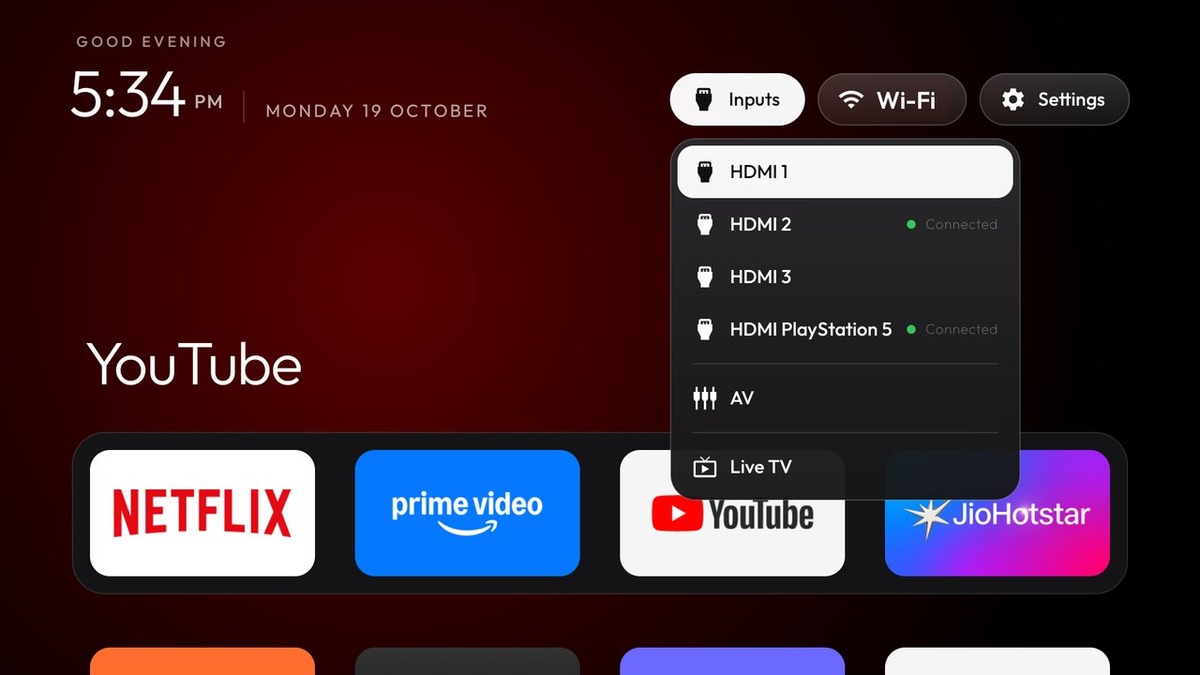
The following reference matrix provides essential command syntaxes, operational parameters, and safety guidelines required when executing How to Use Clean Your TV. Keep these commands accessible to streamline future television maintenance and device re-configuration cycles.
| Operational Command | Function & Target Component | Execution Environment | Reversal Command & Rollback |
|---|---|---|---|
| adb connect <TV-IP>:5555 | Establishes wireless debugging session | PC / Laptop Terminal | adb disconnect <TV-IP>:5555 |
| adb shell pm list packages | Dumps installed television package registry | Local Command Line | Read-only inspection (No reversal needed) |
| adb shell pm disable-user <pkg> | Deactivates intrusive advertising daemons | Wireless Debug Bridge | adb shell pm default-state <pkg> |
| adb install cleanyourtv.apk | Deploys 532 KB native ad-free launcher | Direct Push Installation | adb uninstall tv.cleanyour.launcher |
| adb shell cmd package compile -m speed -f | Pre-compiles launcher ahead-of-time | System ART Compiler | Automatic profile compilation |
Employing these standardized command structures guarantees predictable results whenever executing How to Use Clean Your TV across Android-based television platforms. Proper syntax adherence safeguards vital display services while ensuring thorough suppression of intrusive commercial background daemons.
Step 6: Install and Configure the Clean tvOS Launcher
The crowning achievement when completing How to Use Clean Your TV involves installing and configuring the ultra-lightweight, tvOS-inspired native launcher application. Weighing just five-hundred-and-thirty-two kilobytes, this streamlined home screen delivers an elegant, completely ad-free digital entertainment environment.
Push the compiled launcher installation package across your active wireless bridge directly into your television memory. Once installation completes successfully, press the physical home button on your remote control to trigger the system launcher selection dialog.
# Push and install the lightweight 532 KB native launcher
adb install cleanyourtv-launcher.apk

# Optimize execution speed ahead-of-time with ART compiler
adb shell cmd package compile -m speed -f tv.cleanyour.launcher
Select the newly installed minimalist launcher from the on-screen options and designate it as your permanent default home application. Your television display will instantly refresh, presenting an uncluttered grid containing exclusively your installed, active media streaming applications.
Customize your dashboard by organizing your primary streaming platforms, pinning preferred applications, and configuring the integrated hardware inputs menu. An elegant ambient clock screensaver activates during idle intervals, safeguarding your television panel against burn-in without transmitting telemetry data.
Completing this final deployment phase concludes the full journey of How to Use Clean Your TV across your home theater environment. You now possess a blazing-fast, privacy-respecting entertainment center engineered purely to serve your viewing pleasure rather than corporate advertising quotas.
Delivering polished digital experiences reflects the software craftsmanship celebrated in our coverage of the Ocarina of Time Remake release announcement.
Conclusion: Mastering Your Android TV Environment
Mastering How to Use Clean Your TV fundamentally reclaims your living room autonomy from invasive commercial advertising and sluggish manufacturer interfaces. In less than fifteen minutes, everyday users can transform frustratingly slow displays into responsive, private streaming powerhouses.
The combination of non-destructive wireless debugging and a five-hundred-and-thirty-two-kilobyte native launcher provides unmatched performance and complete reversibility. Rather than investing hundreds of dollars in external streaming hardware, software debloating restores flagship-tier responsiveness to your existing equipment.
Take control of your home entertainment experience today by applying How to Use Clean Your TV across all your household television displays. Share this guide with fellow enthusiasts, embrace open-source innovation, and enjoy television entertainment as it was truly meant to be experienced.
