


Table of Contents
Seeking a substantial Windows 11 performance boost has pushed PC enthusiasts toward deep registry hacks, unthrottled power states, and aggressive debloating scripts promising miraculous desktop responsiveness across modern hardware.
However, comprehensive testing highlighted by Neowin reveals that many of these hidden performance tricks ironically degrade system speed, causing severe thermal throttling, storage bottlenecks, and unpredictable operating system instability.
| Optimization Tweak & Setting | Intended User Benefit | Underlying Operating Mechanism | System Penalty & Risk Profile |
|---|---|---|---|
| Processor Boost Override (PERFBOOSTMODE) | Permanent Maximum Clock Speeds | Disables CPU idle C-states and core parking | Aggressive thermal throttling and excessive fan acoustic noise |
| Startup Serialization Bypass (Serialize = 0) | Instant Desktop App Execution | Bypasses ten-second Windows boot staging timer | Total storage queue saturation and temporary desktop freezing |
| SysMain Service Deactivation | Reduced Idle Memory Footprint | Halts predictive RAM caching and page preloading | Severe application launch delays and constant disk read spikes |
| Registry Worker Thread Tweaks | Faster Multi-Threaded Throughput | Forces arbitrary thread counts on scheduler | Thread starvation, micro-stutters, and gaming frame drops |
| Automated PowerShell Debloaters | Eliminates Unwanted System Apps | Purges system packages and dependencies indiscriminately | Corrupted component store, update failures, and system instability |
Processor Frequency Bursting: Why Windows 11 Performance Boost Tweaks Trigger Thermal Throttling
The most widespread Windows 11 performance boost trick circulating across tech forums involves unhiding advanced processor power management profiles to force continuous maximum turbo frequencies on modern multi-core processors.
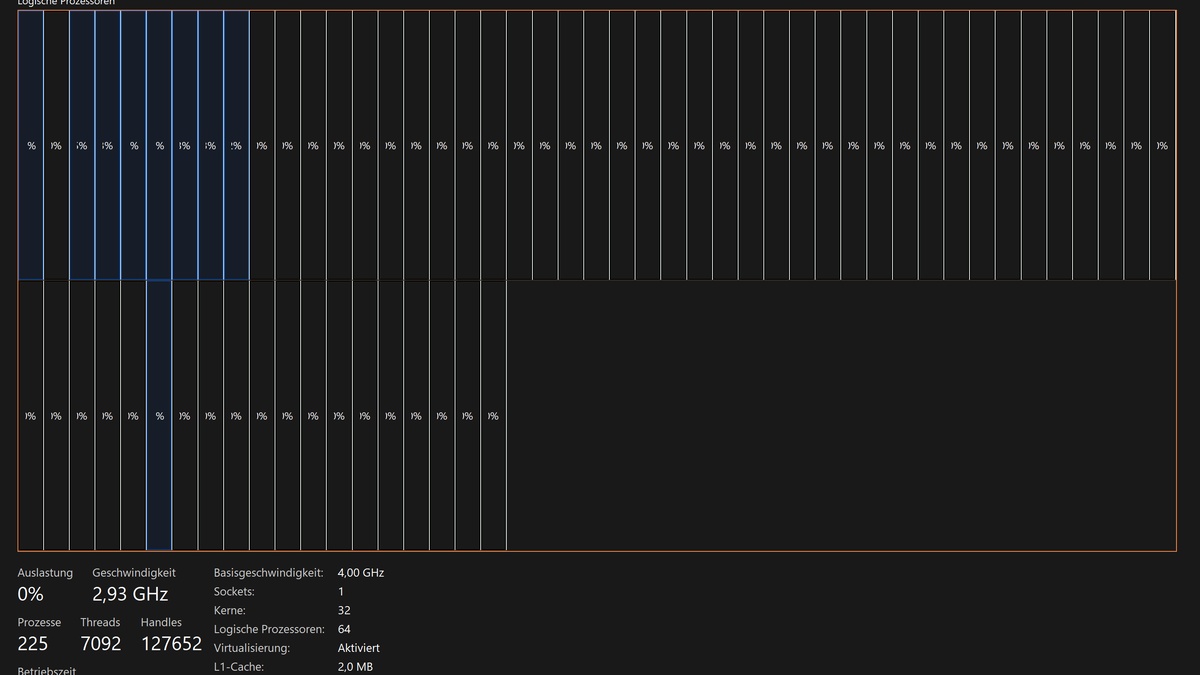
By altering the hidden PERFBOOSTMODE attributes documented on Microsoft Learn, users prevent modern silicon from entering low-power idle sleep states between computational bursts.
While keeping clock multipliers pinned at peak levels creates the illusion of speed, modern processors depend on microsecond idle intervals to dissipate concentrated heat across compact die architectures.
Without dynamic frequency scaling, devices chasing a forced Windows 11 performance boost rapidly encounter thermal junction maximums, triggering aggressive silicon downclocking that severely degrades sustained responsiveness.
Much like the thermal constraints analyzed in our AMD Ryzen 7 9800X3D gaming processor breakdown, modern silicon requires sophisticated power gating rather than forced, uncalibrated voltage states.
Startup Delay Serialization: How Bypassing Boot Staggering Floods Storage Queues
Another frequently recommended Windows 11 performance boost involves altering the Windows Explorer Serialize registry key to disable the built-in startup delay imposed on secondary desktop applications.

By default, Windows intentionally waits roughly ten seconds after user login before sequentially loading third-party startup software, ensuring core system drivers and the desktop shell initialize without friction.
When eager users disable this delay, twenty background processes launch simultaneously, overwhelming primary storage channels and triggering massive storage queue bottlenecks.
Rather than experiencing a lightning-fast boot sequence, users face frozen desktop taskbars and unresponsive pointer inputs while spinning storage queues struggle to satisfy simultaneous input-output operations.
This storage queuing bottleneck clearly demonstrates why an unverified Windows 11 performance boost frequently creates frustrating system delays instead of the instantaneous operational speed users originally anticipated.
Memory Management Fallacies: Disabling Prefetching and SysMain Chokes Bandwidth
Misguided guides frequently tout disabling the SysMain service as an essential Windows 11 performance boost for freeing system memory and reducing disk utilization on contemporary machines.
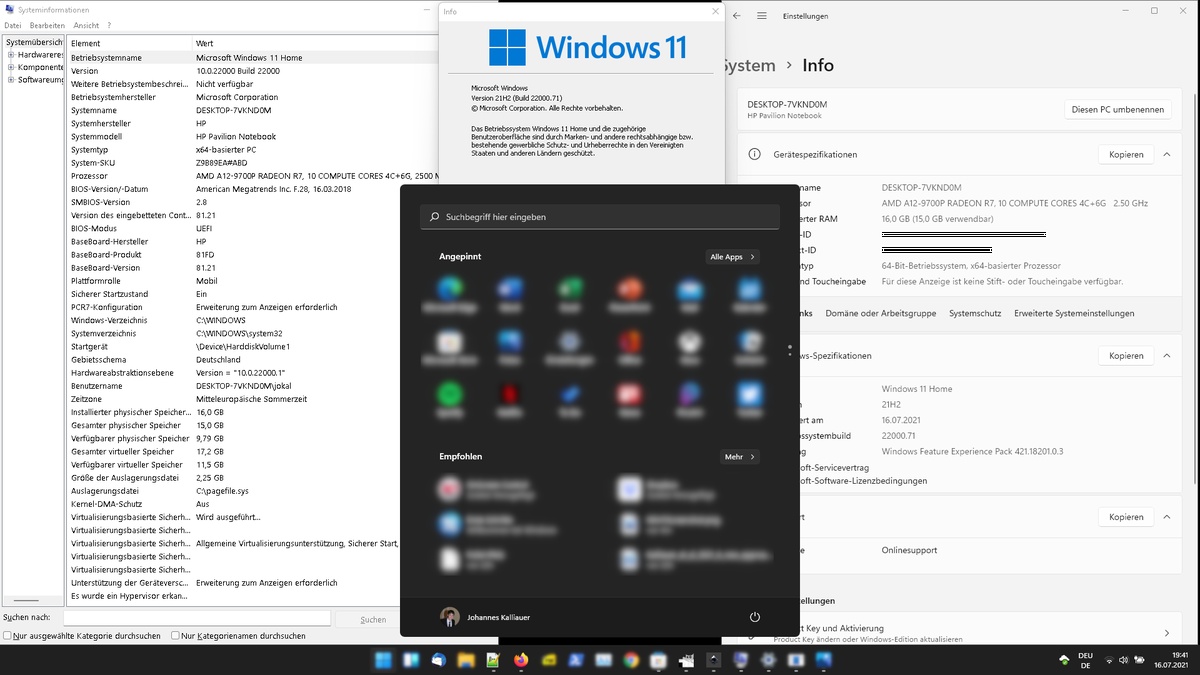
Originating as SuperFetch in legacy Windows releases, modern SysMain monitors application usage patterns to intelligently preload frequently utilized libraries into otherwise dormant physical memory blocks.
Because modern operating systems treat unused RAM as wasted capacity, attempting a Windows 11 performance boost by crippling SysMain forces cold storage binary fetches during routine desktop navigation.
This software regression mirrors the architectural lessons examined in our Windows operating system transition report, where eliminating foundational caching algorithms damages day-to-day productivity.
Disabling intelligent prefetching mechanisms inevitably handicaps system responsiveness, turning what was marketed as a clever Windows 11 performance boost into a persistent application launch bottleneck.
Virtualization Security and Power Matrix: Silicon Impact Across Form Factors
Gamers chasing an uncompromised Windows 11 performance boost frequently deactivate Virtualization-Based Security and Memory Integrity within Windows Defender to eliminate micro-overhead during competitive gaming matches.

While disabling hypervisor-protected code integrity can yield minor synthetic benchmark uplifts on older silicon, modern processor instruction sets handle these virtualization routines with near-zero latency.
Stripping away kernel isolation exposes personal computing systems to sophisticated memory injection exploits, leaving critical identity credentials vulnerable without delivering perceptible real-world gaming advantages.
Modern hardware scheduling relies on tight platform integration, paralleling the unified architecture examined in our Apple M4 Pro chip review where security and throughput operate harmoniously.
Sacrificing fundamental operating system safeguards for a negligible Windows 11 performance boost represents an irresponsible trade-off that compromises workstation integrity for imperceptible single-digit performance gains.
| Hardware Architecture & Platform | Default Power Envelope | Tweak Sensitivity Level | Observed Thermal Delta | Sustained Performance Penalty |
|---|---|---|---|---|
| Ultraportable Thin Laptops (Intel Core Ultra) | Dynamic 15W to 28W TDP | Critical Hazard | +18°C Rapid Package Spike | Severe downclocking to 1.2GHz base clocks |
| Handheld Gaming PCs (AMD Z1 Extreme) | Shared APU 15W to 30W Cap | Severe Hazard | +14°C Core Temperature | Substantial 35% battery penalty and frame drops |
| High-End Desktops (AMD Ryzen 9000 Series) | Unconstrained 120W+ Cooling | Moderate Sensitivity | +6°C Package Temperature | Negligible gaming improvements over Precision Boost |
| Compact Workstations (Apple M4 Pro Architecture) | Unified Silicon System-on-Chip | Platform Immune | Baseline Thermals | Native hardware-level dispatch outperforms overrides |
| Legacy Systems (SATA SSD & Mechanical Drives) | Standard Balanced Profile | Catastrophic Hazard | Storage Queue Overload | Extended multi-minute desktop unresponsiveness on boot |
Safe Optimization Blueprints: Native Windows 11 Hygiene Without System Instability
The most dangerous path toward an artificial Windows 11 performance boost involves running automated PowerShell debloater scripts downloaded from unverified open-source repositories across the web.
These scripts ruthlessly excise built-in application packages, disable scheduled maintenance routines, and sever diagnostic telemetry pipelines required for delivering legitimate cumulative security patches.
When underlying operating system components are forcibly unlinked, Windows Update frequently encounters catastrophic rollback loops, leaving the local component store irreparably fragmented and unstable.
Instead of relying on destructive system scripts, maintaining an authentic Windows 11 performance boost requires adhering to native configuration options provided directly within modern system settings.
Users achieve genuine responsiveness improvements by auditing startup applications inside Task Manager, enabling native Storage Sense automation, and configuring official energy efficiency toggles.
Frequently Asked Questions
Why do hidden Windows 11 performance boost registry tweaks cause system slowdowns?
Forced registry tweaks disable native frequency scaling and boot sequencing, causing severe thermal throttling, storage input bottlenecks, and damaged caching routines.
Does disabling the Windows 11 startup delay make your computer boot faster?
No, disabling the startup delay forces all startup applications to initialize at once, saturating storage queues and causing desktop freezing.
Should users turn off SysMain to save system memory in Windows 11?
Disabling SysMain directly harms system performance by preventing Windows from preloading frequent application libraries and working sets into available physical memory for instantaneous execution.
Is disabling Virtualization-Based Security worth the gaming performance uplift?
On modern processors, disabling Virtualization-Based Security delivers negligible single-digit frame rate gains while completely removing essential kernel memory protections against unauthorized exploits.
What is the safest way to achieve a real Windows 11 performance boost?
Manage startup applications via Task Manager, activate Storage Sense, install verified manufacturer chipset drivers, and keep cumulative servicing updates current.
Final Verdict: Native OS Scheduling Outperforms Aggressive Registry Tweaks
The recurring phenomenon of counterproductive optimization highlights why pursuing an aggressive Windows 11 performance boost through registry manipulation is fundamentally flawed on contemporary computing architectures.
Much like the cloud delivery models evaluated in our Xbox Cloud Gaming infrastructure analysis, modern operating system scheduling requires holistic orchestration rather than isolated parameter overrides.
By respecting native power management policies and avoiding destructive debloater scripts, users achieve an authentic Windows 11 performance boost while preserving long-term hardware stability.
