


Table of Contents
Modern solid state drives deliver lightning-fast read and write speeds, yet alarming diagnostic telemetry reveals that rogue Chrome Extensions Hammer SSD drives through relentless write amplification cycles while desktop personal computers sit completely idle.
First reported by Neowin and corroborated across enthusiast forums, built-in diagnostic tools inside Windows 11 empower power users to detect, trace, and terminate these stealthy background write loops before permanent flash cell endurance degradation occurs.
| Diagnostic Tool | Telemetry Mechanism | Metric Tracked | Primary Troubleshooting Function |
|---|---|---|---|
| PowerShell WMI Query | Win32_Process CIM query | Cumulative WriteTransferCount | Identifies lifetime gigabytes written per process |
| Windows Resource Monitor | Kernel I/O driver tracking | Real-time B/sec write speed | Isolates active disk file paths from network sockets |
| Chrome Task Manager | V8 engine per-tab telemetry | Memory, CPU, network activity | Pinpoints rogue extension ID and running script |
| Service Worker Console | Chrome internal worker state | Worker registration & status | Terminates infinite background fetch-cache loops |
| CrystalDiskInfo / SMART | Storage controller firmware | Host Writes & remaining life | Verifies physical NAND flash cell endurance wear |
How Chrome Extensions Hammer SSD Drives Through Runaway Service Workers
When a high-performance computer sits unattended overnight, storage hardware should remain practically dormant, yet rogue Chrome Extensions Hammer SSD arrays by running continuous input and output operations through persistent background service worker scripts.
Modern Chromium architecture relies heavily on background service workers to manage push notifications, background synchronization routines, and local asset caching without necessitating open browser windows or direct user interaction on the desktop.
Unfortunately, poorly engineered third-party browser add-ons frequently enter infinite revalidation loops, continuously querying remote endpoints, generating temporary binary records, and evicting cached database tables dozens of times every single minute.
This chaotic operational pattern ensures that rogue Chrome Extensions Hammer SSD flash cells aggressively, accumulating hundreds of gigabytes of cumulative host writes over routine work sessions while quietly evading standard operating system warnings.
Because conventional consumer antivirus programs scan strictly for signature-based malware payloads rather than anomalous background write volume, these hyperactive background tasks operate entirely uninhibited beneath standard Windows defender boundaries.
Users frequently only uncover this silent storage destruction after noticing unexpected solid state drive temperature spikes, accelerated battery drain on portable laptops, or unexplained drops in total drive health percentages.
The PowerShell Diagnostics: Querying Cumulative WriteTransferCount Telemetry
To verify precisely how rogue Chrome Extensions Hammer SSD hardware so aggressively, hardware specialists leverage built-in Windows Management Instrumentation commands executable directly within standard administrative PowerShell console sessions on Windows 11.
By issuing queries against the native Win32_Process class through the Microsoft WMI architecture, users extract the WriteTransferCount metric, which tracks every single byte written by each running system process since boot.
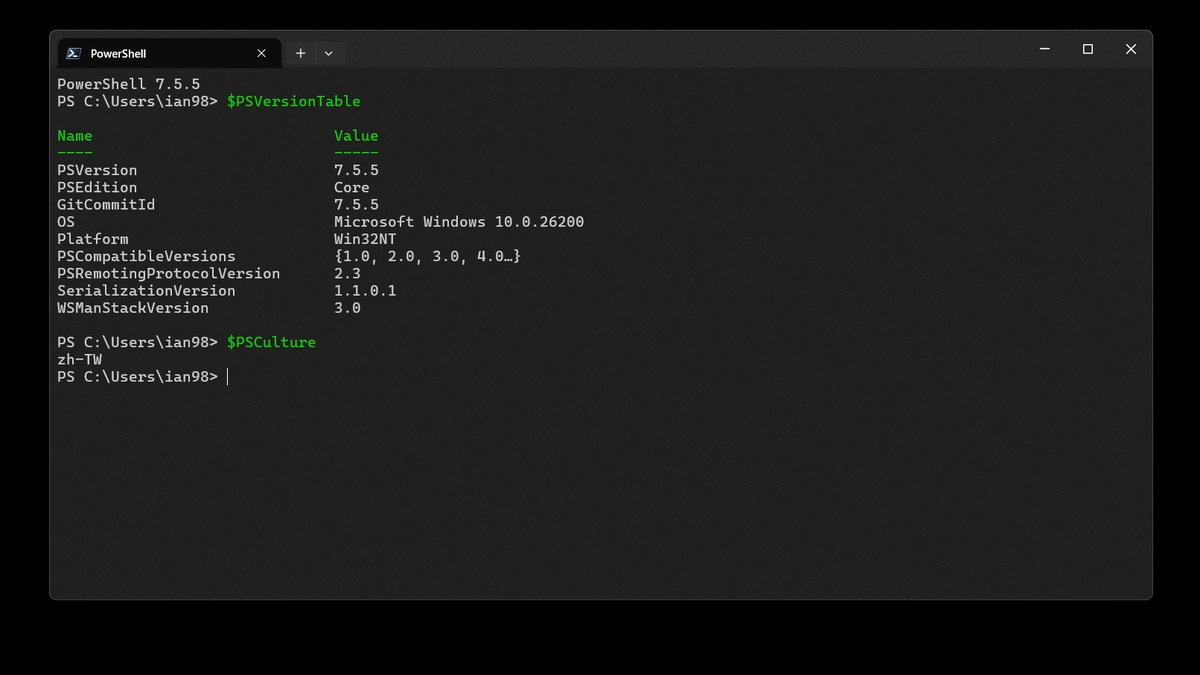
Running the command Get-CimInstance Win32_Process sorted descending by WriteTransferCount generates an immediate, ranked hierarchy of system processes, exposing stealthy applications that quietly dominate overall desktop storage bandwidth.
In diagnostic troubleshooting threads where Chrome Extensions Hammer SSD units continuously, Google Chrome renderer processes revealed staggering cumulative write tallies surpassing six hundred gigabytes within merely forty-eight hours of normal desktop runtime.
Much like how low-level platform execution profiles isolate severe microarchitectural bottlenecks in our AMD Ryzen 7 9800X3D gaming benchmarks, native PowerShell queries deliver unvarnished hardware observability across local storage pipelines.
This telemetry technique surpasses basic Task Manager monitoring by analyzing total cumulative lifetime throughput rather than fleeting real-time transfer velocities that frequently plunge back to zero during manual spot inspections.
CacheStorage Directory Thrashing: Why Chrome Extensions Hammer SSD Storage
Examining the underlying file structure exposes the specific mechanics of how Chrome Extensions Hammer SSD storage partitions, directing attention to the hidden CacheStorage database directories nested deep inside the Google Chrome user profile hierarchy.
Located within the local application data directory under User Data Default Service Worker CacheStorage, these repositories house complex index tables and binary chunks generated by active background extension routines.
Whenever a third-party add-on encounters unexpected network timeouts or unhandled database synchronization errors, its underlying caching routines frequently purge existing database records and instantly trigger an aggressive full-scale redownload cycle.
Because this broken retry loop repeats indefinitely in the background, Chrome Extensions Hammer SSD flash blocks with ceaseless write amplification, generating tens of gigabytes of ephemeral data garbage that yields zero tangible utility.
Document conversion add-ons and PDF processing extensions were identified as prominent culprits, running persistent background worker threads configured to pre-cache cloud templates perpetually even when no document viewing occurred.
Instead of pausing dormant when browsing sessions conclude, these rogue worker scripts behave as rogue background daemons, transforming everyday productivity utilities into relentless, unintended solid state drive torture benchmarks.
Resource Monitor Verification: Isolating Real-Time I/O Against Proxy Traffic
While administrative PowerShell queries successfully highlight suspicious cumulative write volume, hardware analysts must distinguish between physical NAND flash wear and virtual socket throughput when Chrome Extensions Hammer SSD systems.
Launching the native Windows Resource Monitor by executing resmon provides access to the Disk tab, which exhibits per-process disk utilization alongside real-time transfer rates and active file system target paths.
The WMI WriteTransferCount counter inherently aggregates all write input and output calls, incorporating inter-process pipes and local proxy socket loops frequently created by security utilities and browser proxy extensions.
By inspecting the active Disk Activity table within Resource Monitor, enthusiasts can verify whether Chrome Extensions Hammer SSD physical media directly or merely pass network data packets across internal loopback virtual memory sockets.
Similar to how long-term driver roadmaps dictate hardware reliability in our NVIDIA Windows 10 driver support roadmap, accurate storage diagnostics require cleanly distinguishing between synthetic socket traffic and destructive physical wear.
When Resource Monitor demonstrates chrome.exe processes actively writing megabytes per second to CacheStorage files on your main operating system partition, you have definitively confirmed active physical flash degradation.
| SSD Capacity & Type | Standard TBW Rating | Normal Daily Writes | Runaway Extension Daily Writes | Estimated Lifespan Impact |
|---|---|---|---|---|
| 500GB QLC NVMe | 150 TBW | 15 – 25 GB/day | 80 – 150 GB/day | Drops from 16+ years to 2.7 years |
| 1TB TLC NVMe | 600 TBW | 25 – 40 GB/day | 120 – 200 GB/day | Drops from 41+ years to 8.2 years |
| 2TB TLC High-End | 1,200 TBW | 40 – 70 GB/day | 150 – 250 GB/day | Drops from 46+ years to 13.1 years |
| 4TB Pro Enterprise | 2,400 TBW | 80 – 120 GB/day | 200 – 350 GB/day | Drops from 54+ years to 18.7 years |
NAND Flash Wear Realities: TBW Degradation and Write Amplification Risks
Grasping why uncontrolled Chrome Extensions Hammer SSD longevity demands an evaluation of the microscopic semiconductor physics governing modern triple-level cell and quad-level cell solid state drive memory architectures.
Every NAND flash memory cell endures a finite quantity of program and erase cycles before microscopic silicon dioxide insulation layers deteriorate, ultimately preventing cells from reliably retaining electrical charge states.
Storage manufacturers enforce a Terabytes Written warranty specification, commonly assigning between three hundred and six hundred terabytes of guaranteed lifetime host writes for standard one-terabyte NVMe consumer drives.
When rogue Chrome Extensions Hammer SSD devices with sixty to one hundred gigabytes of unnecessary daily churn, they burn through nearly thirty-six terabytes of endurance annually solely through invisible idle background thrashing.
Just as strict thermal and silicon efficiency budgets dictate sustained performance in our Apple M4 Mac Mini hardware analysis, flash storage silicon necessitates disciplined write management to preserve long-term operational integrity.
Coupled with solid state drive write amplification factors, where miniature random writes force extensive block erasures, rogue browser extensions substantially compress the anticipated operational lifespan of primary storage hardware.
Step-by-Step Remediation: Neutralizing Chrome Extensions Hammer SSD Loops
Once diagnostic procedures prove that rogue Chrome Extensions Hammer SSD drives, users must initiate a structured remediation sequence to identify the offending extension and purge corrupted local cache repositories entirely.
Begin by opening the Google Chrome internal task manager using the Shift and Escape keyboard shortcut, which details real-time processor load, memory consumption, and network activity across every installed browser extension process.
Next, navigate to the extensions management console at chrome://extensions, locate add-ons demonstrating abnormal continuous CPU utilization or background activity, and toggle their operational switches off to arrest background execution.
To ensure that Chrome Extensions Hammer SSD storage no further, enter chrome://serviceworker-internals in the address bar, identify active worker registrations corresponding to the disabled extension ID, and click the unregister command button.
Just as modular cloud architecture isolates rogue service latency in our Xbox Cloud Gaming architecture review, terminating offending worker registrations halts runaway storage thrashing instantly.
Conclude the remediation by manually deleting the swollen CacheStorage folder from your Chrome user profile directory, then restart the browser to restore a clean, unburdened solid state drive storage environment.
Preventative Browser Hardening: Permission Scoping and Memory Saver Policies
Safeguarding systems against subsequent occurrences where rogue Chrome Extensions Hammer SSD hardware requires hardening default browser permission boundaries and restricting unrestricted background script execution rights across installed add-ons.
By default, numerous extensions request broad authorization to read and change site data across all websites, permitting background service workers to execute freely and write local cache data without explicit user approval.
Users should modify extension permissions inside Chrome settings from on all sites to on click, ensuring browser add-ons remain dormant and cannot instantiate persistent background caching workers until explicitly clicked.
Activating the integrated Memory Saver feature inside Chrome performance settings further suspends dormant background tabs, ensuring that neglected Chrome Extensions Hammer SSD drives through unthrottled background cache synchronization routines.
Conducting regular extensions audits and pruning unnecessary add-ons dramatically decreases operating system attack surfaces while liberating critical system memory and valuable solid state drive input and output bandwidth.
Combining these browser hardening measures with scheduled PowerShell storage telemetry audits guarantees that your modern high-speed solid state drive delivers years of durable, peak-efficiency computing performance.
Frequently Asked Questions
How do Chrome extensions hammer SSD storage while idle?
Rogue Chrome Extensions Hammer SSD storage by spawning background service workers that execute infinite caching loops, continuously writing and evicting temporary assets within the local profile directory even when no browser tabs remain open.
What PowerShell command reveals high SSD write processes?
Users can run Get-CimInstance Win32_Process sorted descending by WriteTransferCount in an administrative PowerShell terminal to display total gigabytes written by every active process since the operating system booted.
Can background Chrome writes destroy an SSD permanently?
While modern drives possess robust endurance ratings, excessive Chrome Extensions Hammer SSD write volumes accelerate flash cell degradation, consuming valuable Terabytes Written allocation and reducing the operational lifespan of consumer drives.
Does WriteTransferCount always indicate physical disk writes?
Not exclusively, as WMI WriteTransferCount records all write I/O operations including internal pipe communications and local network proxy traffic, requiring cross-verification via Windows Resource Monitor to confirm physical disk activity.
How do I prevent Chrome extensions from running in the background?
Open Chrome settings, adjust extension permissions to run only on click rather than all sites, enable native Memory Saver, and unregister lingering workers via the internal service worker diagnostics page.
Final Verdict: Native Windows Telemetry Protects Modern Storage Hardware
The discovery that rogue Chrome Extensions Hammer SSD drives during idle hours highlights the paramount importance of low-level operating system observability and proactive hardware monitoring in modern personal computing environments.
By uniting native Windows 11 PowerShell telemetry with granular Resource Monitor diagnostics, PC owners possess formidable, preinstalled diagnostic tools capable of identifying and neutralizing rogue background processes without third-party utilities.
Taking proactive steps to audit browser extensions, constrain background execution privileges, and monitor storage endurance ensures that your high-speed solid state drive maintains maximum performance and rated hardware longevity.
